Common Platform Size Limits
Every platform that accepts image uploads imposes size limits. Exceeding these limits triggers the dreaded "File too large" error. Here are the limits you need to know:
- WordPress (default): 2MB upload limit — configurable by your hosting provider
- Discord: 8MB for free users, 50MB for Nitro subscribers
- Gmail: 25MB total per email (including all attachments)
- Facebook: 15MB for photos, 4GB for videos
- Instagram: 30MB for photos, 650MB for videos
- LinkedIn: 8MB for images, 200MB for videos
These limits aren't arbitrary. They exist to control server storage costs, prevent abuse, and ensure reasonable loading times for other users.
Quick Fix: Lower the Quality Slider
The fastest way to reduce file size is to lower the image quality. For JPG and WebP formats, the relationship between quality and file size is non-linear:
- 100% → 80% quality: File size drops ~40% with virtually no visible difference
- 80% → 60% quality: File size drops another ~35%. Minor artifacts appear on close inspection but are usually acceptable for web use
- Below 50%: Visible degradation. Avoid unless file size is absolutely critical
For most web uploads, 60–70% quality hits the sweet spot. Use Image Toolbox to preview the result before committing to a quality level.
Quick Fix: Resize to Screen Dimensions
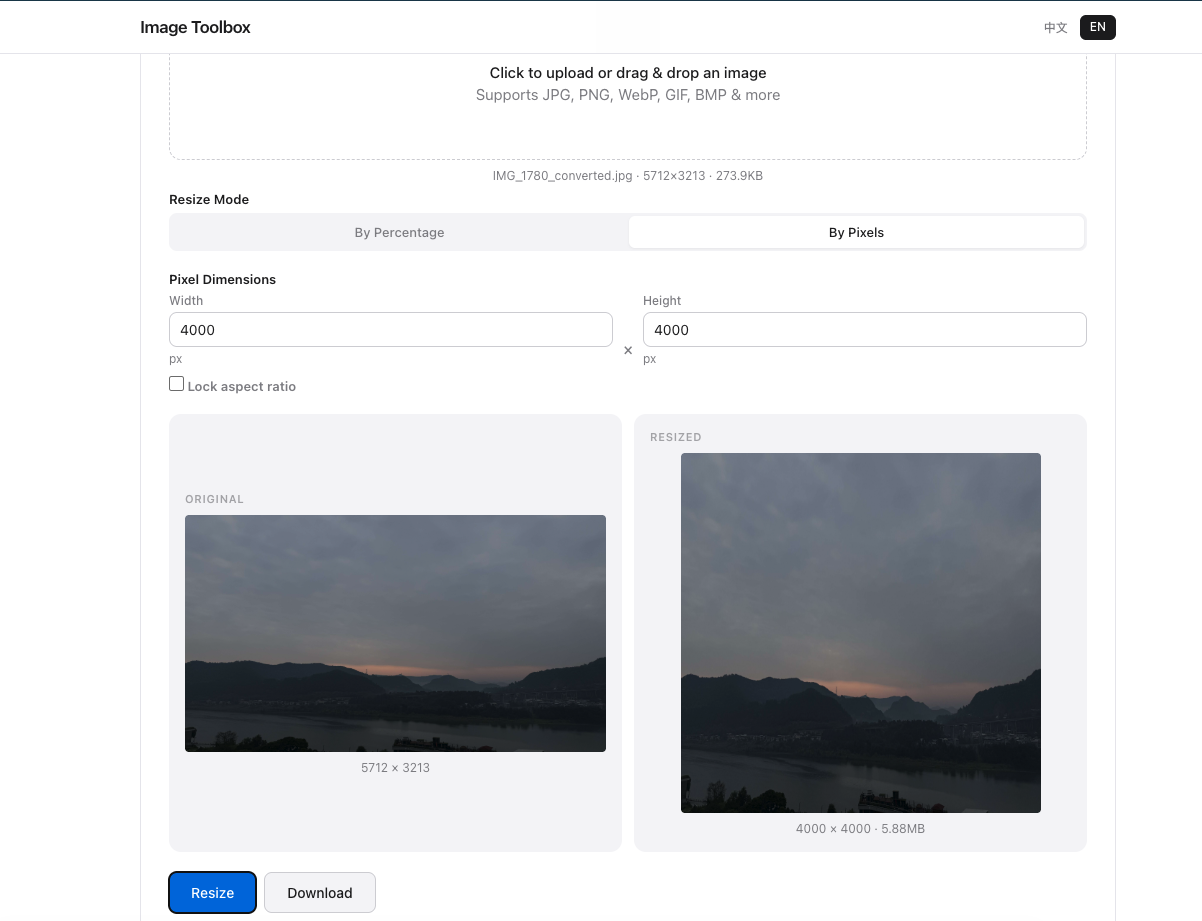
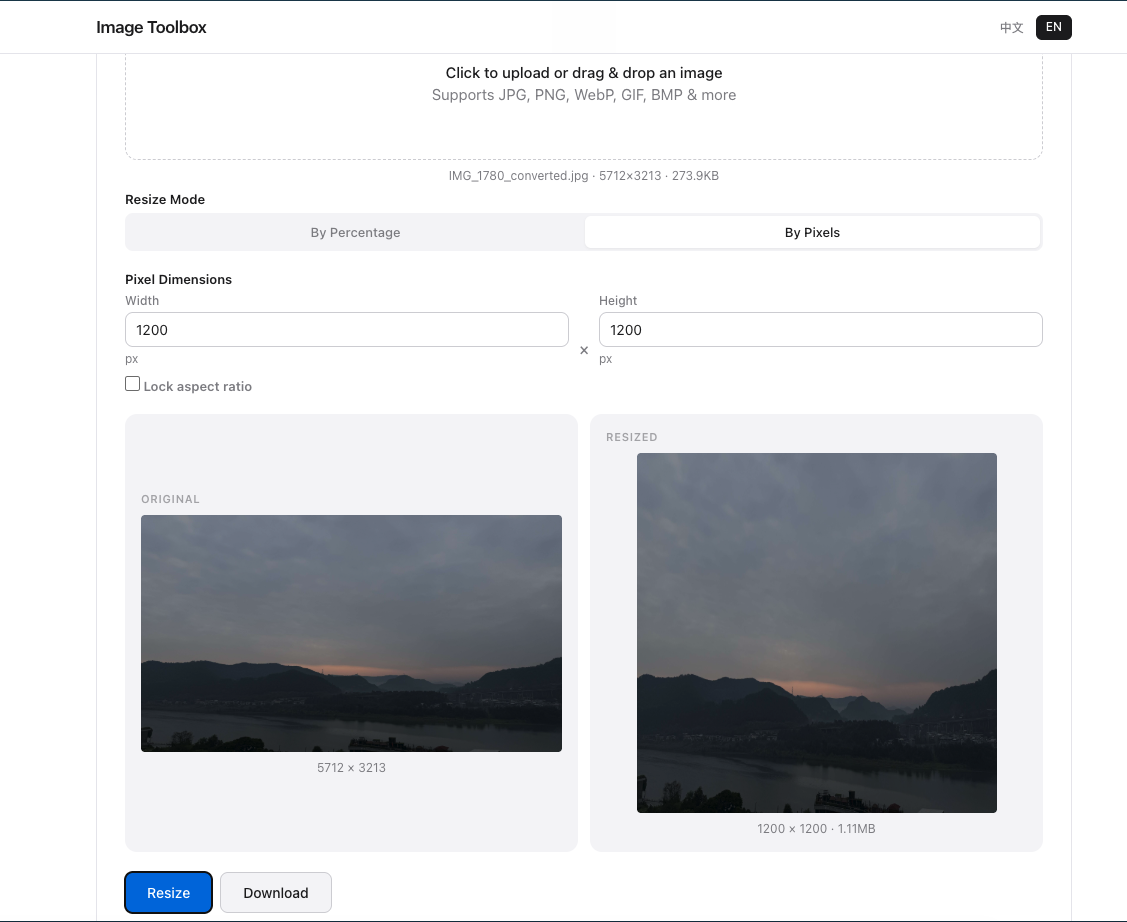
Most users upload images far larger than necessary. A 4000 × 3000 pixel image might look impressive, but:
- Instagram displays it at 1080px wide
- WordPress themes typically render content images at 800–1200px
- Email clients scale images to fit the viewport
Resizing to the display dimensions before uploading can reduce file size by 80–90% without any visible quality loss at normal viewing distance.
Quick Fix: Convert to WebP
WebP consistently produces 25–35% smaller files than JPG at the same visual quality. If the platform supports WebP uploads, converting before uploading is an instant win. Even if the platform converts uploads automatically (like Facebook and Instagram do), starting with a smaller file means faster uploads and less data usage.
One-Tool Fix for All Upload Errors
Rather than memorizing dozens of platform limits, use Image Toolbox for compression and our resize tool for dimension control. The typical workflow: resize to target width (1200px for most platforms), compress to 65% quality, convert to WebP if supported. This combination handles 95% of upload size issues.
Common Issues
Top failures: (1) file >50MB, (2) unsupported format, (3) corrupted headers. Our tool handles all three.