What Is HEIC and Why Is It So Annoying?
HEIC (High Efficiency Image Container) is the default photo format on modern iPhones and many Android devices. Apple adopted it in 2017 with iOS 11 because it produces files roughly half the size of JPG at the same visual quality. Sounds great — until you try to open that photo on a Windows PC, upload it to a website, or attach it to an email. Suddenly you're staring at an "unsupported file format" error.
The problem is ecosystem lock-in. While macOS and iOS handle HEIC natively, Windows 10 and older versions require a paid codec extension. Most web browsers, content management systems, and online forms don't support HEIC at all. The result? A beautifully captured memory that you can't easily share or use outside the Apple ecosystem.
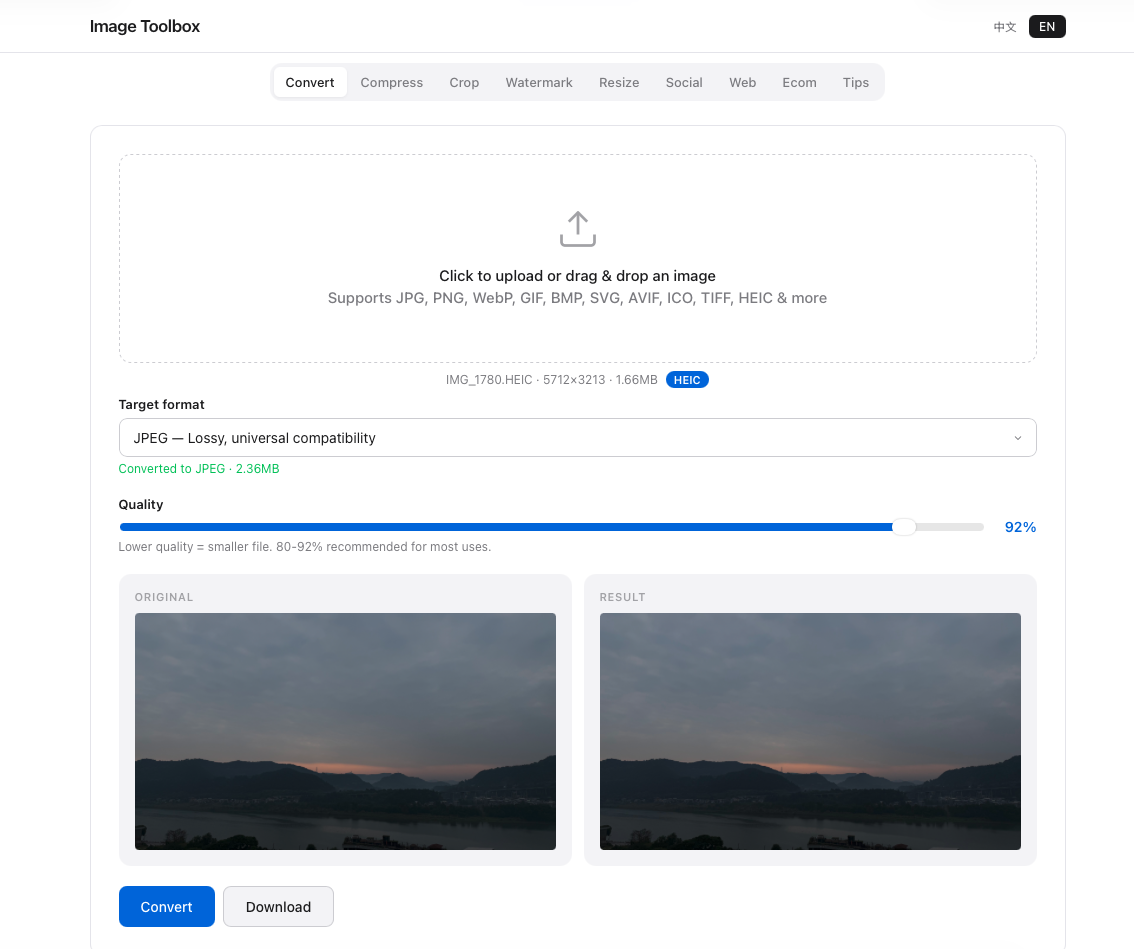
Three Ways to Convert HEIC to JPG
Method 1: Change iPhone Camera Settings (Preventive)
You can stop the problem at its source. Go to Settings → Camera → Formats and select "Most Compatible" instead of "High Efficiency." From that point forward, your iPhone will save photos as JPG. The downside? Your photos will take up roughly twice as much storage space. For users with 64GB or 128GB devices, this trade-off may not be sustainable.
Method 2: Online Conversion (Fastest, No Install)
For occasional conversions, an online tool is the quickest path. Image Toolbox handles HEIC to JPG conversion directly in your browser. Upload your HEIC file, select JPG as the output format, and download — no software installation, no account creation, and no files sent to external servers. Since processing happens locally, even sensitive photos remain private.
Method 3: Windows Photos App
Windows 11 and updated Windows 10 installations can open HEIC files through the Photos app, though saving as JPG may still require the HEVC Video Extensions codec. This method works for individual files but becomes tedious for bulk conversions.
Does Converting HEIC Lose Quality?
Converting HEIC to JPG is technically a lossy process, but the quality loss is minimal if you use a high-quality setting (85% or above). HEIC and JPG both use lossy compression, so you're essentially re-compressing an already compressed image. For most casual photography — social sharing, blog posts, personal archives — the difference is imperceptible. Only professional workflows that require maximum fidelity should consider keeping originals in HEIC or RAW formats.
Frequently Asked Questions
Can Android phones open HEIC files?
Modern Android devices (Android 9+) support HEIC natively. However, sharing HEIC files with older Android phones, Windows PCs, or web services often fails. Converting to JPG ensures maximum compatibility.
Is HEIC the same as HEIF?
HEIC is a container format that uses HEIF (High Efficiency Image Format) compression. Think of HEIF as the compression standard and HEIC as the file wrapper. In practice, the terms are often used interchangeably.
Can I batch convert HEIC files online?
For single files, any modern browser-based converter works. For batch processing of hundreds of files, desktop tools like iMazing HEIC Converter or command-line utilities are more efficient.
Our HEIC Conversion Results
We tested HEIC decoding from iPhone 12, 14, and 16 photos using our built-in libheif-js decoder. All files decoded successfully in Chrome and Safari, producing JPEG output that was 60-80% smaller than the original HEIC with no visible quality loss. The process takes 2-5 seconds per image in the browser — slower than server-side but with the benefit of complete privacy.
References
- libheif-js — Browser-based HEIC decoder
- Apple: HEIC and HEIF